reForge Captcha Manager

reForge Captcha Manager

Developed By CodeForgeX Studio

Compatible with WHMCS v9.0

Overview

reForge Captcha Manager is a WHMCS addon module that replaces the default Google reCAPTCHA with reForge Captcha — a privacy-friendly, GDPR-compliant captcha solution with support for multiple widget types, themes, and languages.

The module injects the captcha widget into your WHMCS client area forms automatically, and validates tokens server-side before allowing form submissions through.

Supported pages

  • Login
  • Registration
  • Password Reset
  • Contact Form
  • Support Ticket Submit
  • Shopping Cart / Checkout

Requirements

  • WHMCS 8.x or later
  • PHP 7.4 or later
  • An active reForge Captcha account (see below)
  • allow_url_fopen enabled in PHP (for server-side token verification)

Creating a reForge Captcha Account

You need an account on one of the two reForge Captcha regions:

Region URL Use when Global (US) reforgecaptcha.cloud Default — recommended for most users EU (Europe) eu.reforgecaptcha.cloud Required if your server or users are in the EU and data must stay in Europe

Register at your chosen region, create a site, and copy your Site Key (public) and Secret Key (private). Make sure to register your WHMCS domain in the dashboard.

Important: Your account, site key, and secret key are region-specific. A key created on eu.reforgecaptcha.cloud will not work with the Global region and vice versa.

Installation

  1. Download or clone this repository.
  2. Upload the reforgecaptcha folder to your WHMCS server at:
    /path/to/whmcs/modules/addons/reforgecaptcha/
    
    The directory should contain at minimum:
    modules/addons/reforgecaptcha/
    ├── reforgecaptcha.php
    └── hooks.php
    
  3. Make sure file permissions are correct (typically 644 for files, 755 for directories).

Activation

  1. Log in to your WHMCS admin panel.
  2. Navigate to:
    yourwhmcsinstallation.tld/youradminpath/configaddonmods.php
    
  3. Find reForge Captcha Manager in the list and click Activate.
  4. After activation, click Configure to set access control (which admin roles can manage the module).

Configuration

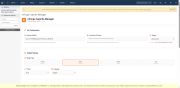
Once activated, manage all settings at:

yourwhmcsinstallation.tld/youradminpath/addonmodules.php?module=reforgecaptcha

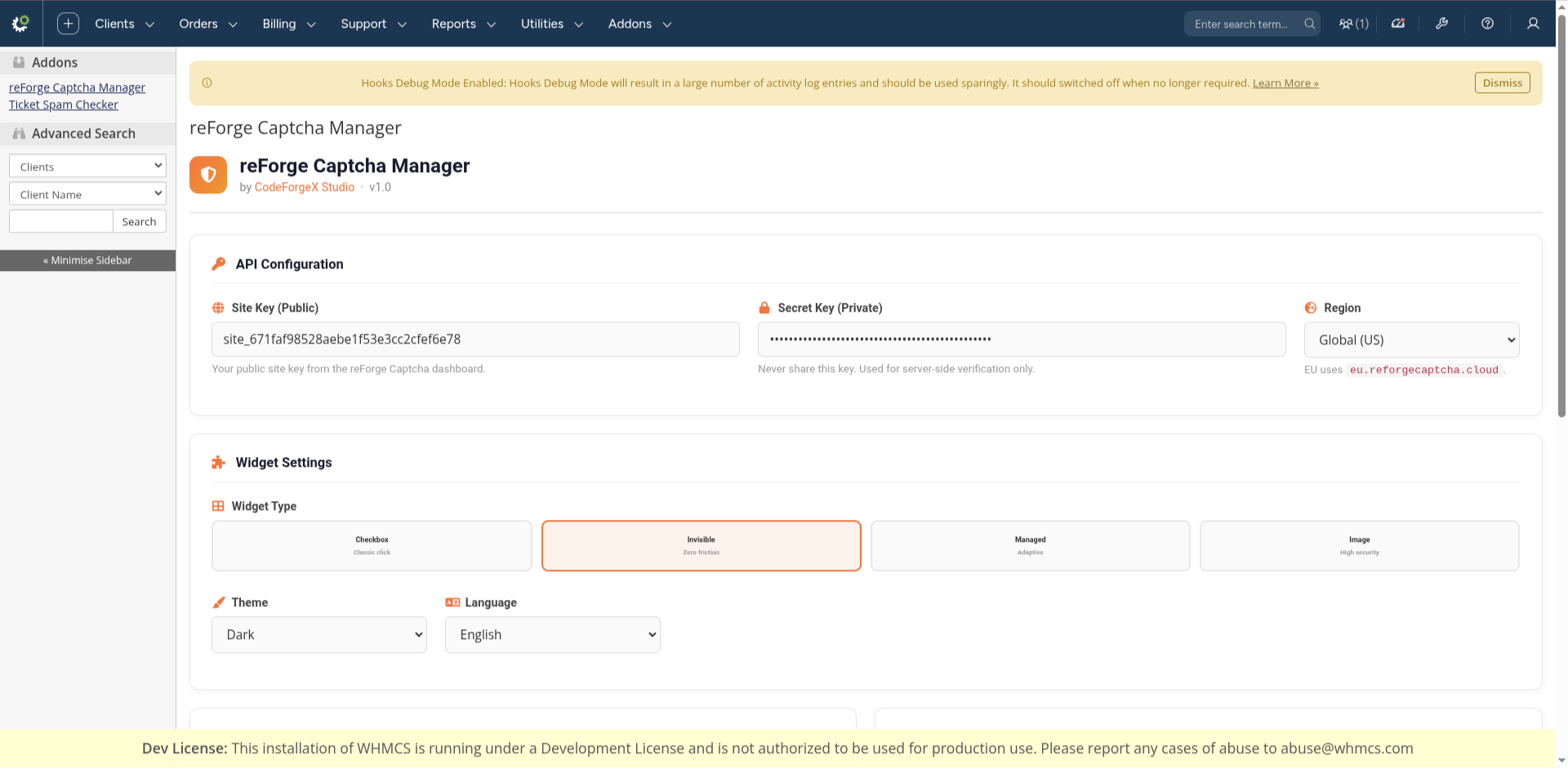
API Configuration

Field Description Site Key (Public) Your public key from the reForge Captcha dashboard. Starts with site_. Secret Key (Private) Your private key used for server-side verification. Never expose this publicly. Region Select Global (US) or EU (Europe) to match the region where your account was created.

Widget Settings

Setting Description Widget Type Checkbox — classic click-to-verify. Invisible — zero friction, runs silently. Managed — adaptive, decides automatically. Image — high security image challenge. Theme Auto follows the user's system preference. Light or Dark forces a specific theme. Language Widget display language: English, Dutch, German, French, or Spanish.

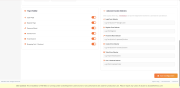
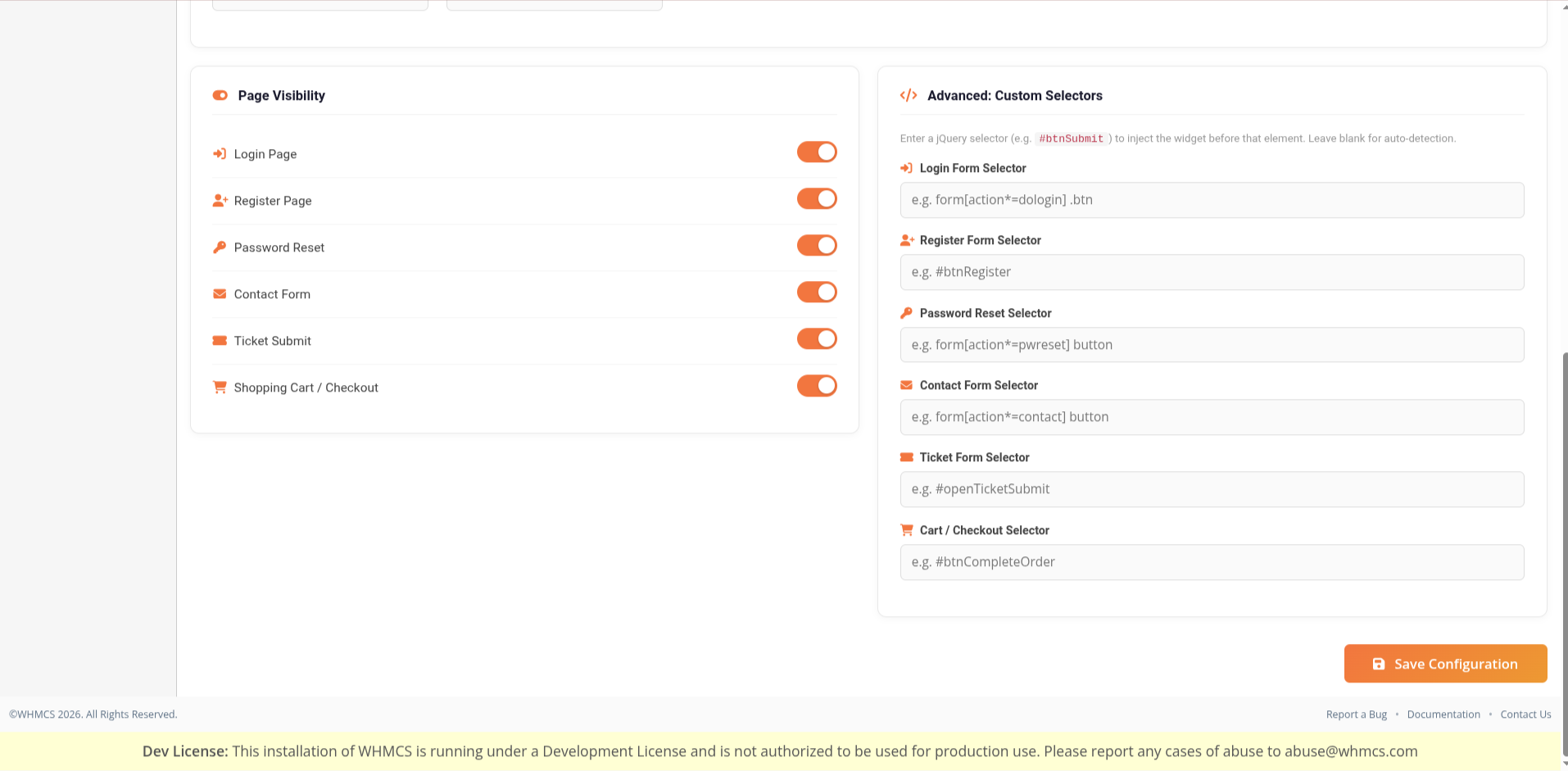
Page Visibility

Enable or disable the captcha widget per page using the toggle switches. Pages with the toggle off will not show any widget and will not be verified.

Advanced: Custom Selectors

By default the module auto-detects the correct form and submit button on each page. If your WHMCS theme uses non-standard markup, you can override the injection target with a custom jQuery selector.

Example: To inject the widget before a button with id #mySubmitBtn, enter #mySubmitBtn in the relevant selector field.

Leave blank to use automatic detection.

How It Works

  1. Script injection — The reForge Captcha widget script is loaded in the <head> of the page on any enabled page.
  2. Widget injection — A <div class="reforge-captcha"> is injected into the form via jQuery, just before the submit button.
  3. Token generation — When the user completes the captcha, the widget injects a hidden reforge-captcha-token input into the form.
  4. Server-side verification — On form submit, the module sends the token to the reForge Captcha API (/api/verify) and checks that success is true and score >= 0.5.
  5. Blocking — If verification fails, the submission is blocked with an appropriate error message:
    • "Please complete the CAPTCHA verification." — token was missing
    • "CAPTCHA verification failed. Please try again." — token was invalid
    • "Your request was flagged as suspicious. Please try again." — score too low

Region Details

When EU is selected, all API calls and widget scripts are routed through eu.reforgecaptcha.cloud instead of reforgecaptcha.cloud. This includes:

  • Widget JS: eu.reforgecaptcha.cloud/assets/js/widget.js
  • Verify API: eu.reforgecaptcha.cloud/api/verify

Changing the region in the settings takes effect immediately — no code changes required.

Uninstallation

  1. Go to:
    yourwhmcsinstallation.tld/youradminpath/configaddonmods.php
    
  2. Click Deactivate next to reForge Captcha Manager.
  3. Delete the modules/addons/reforgecaptcha/ directory from your server.

Deactivating removes the module from WHMCS but does not delete saved settings from the database (tbladdonmodules). To fully clean up, remove rows where module = 'reforgecaptcha' from that table.


There are no reviews yet!

Be the first to review reForge Captcha Manager.

Version Compatibility


Compatible with WHMCS v9.0

Full Version Compatibility


  • All versions of WHMCS v9.0
  • All versions of WHMCS v8.13
  • All versions of WHMCS v8.12

System Requirements


  • An active reForge Captcha account

* Requirements listed are in addition to the WHMCS default system requirements.

Support for this product

The best place to start if you need help with a specific product is to contact the developer. All WHMCS Marketplace developers have both a website and support URL listed.

Developed By CodeForgeX Studio

Changelog

v1.0 Released March 7th, 2026

Latest Version


Initial Release

  • First public release of reForge Captcha Manager for WHMCS.
  • Replaces default Google reCAPTCHA with reForge Captcha across the WHMCS client area.
  • Server-side token verification via the reForge Captcha API with score threshold (>= 0.5).
  • Support for Global (US) and EU (Europe) regions — all API calls and widget scripts automatically route to the correct endpoint based on the selected region.
  • Widget injection into the following pages via jQuery auto-detection:
    • Login
    • Registration
    • Password Reset
    • Contact Form
    • Support Ticket Submit
    • Shopping Cart / Checkout
  • Support for four widget types: Checkbox, Invisible, Managed, and Image.
  • Theme support: Auto, Light, and Dark.
  • Language support: English, Dutch, German, French, and Spanish.
  • Toggle switches per page to enable or disable the captcha independently.
  • Advanced custom jQuery selector override per form for non-standard WHMCS themes.
  • Distinct error messages per failure reason: missing token, failed verification, and suspicious score.
  • Admin UI with branded header, widget type card picker, and orange gradient styling.


See also

The SSL Store™ WHMCS SSL Reseller Module

Sell 110+ SSL and website security products in WHMCS

Free
Client Password Changer

Easily generate and change passwords for your clients without the need to send an email

Free
Abuse Manager Pro

Creating & managing abuse reports just got easier!

Commercial
CSF Unblocker v4

Give your customers the power to unblock themselves from the CSF Firewall! Lessen your staff support ticket load


Commercial
Phone Verification

Automated Phone Verification. Protect your business and your users

Commercial